
The screen acknowledges a tap, but the saw waits before the clamp moves. Calling that a “slow touchscreen” can send a replacement panel to the shop when the delay is actually farther downstream. An aluminum saw HMI response delay has at least three possible starting points: touch recognition, information returning to the display, and permission for the machine to act. Locate the first late event before changing hardware or cycle settings.
This guide is for an operator, maintenance lead, or buyer who needs a repeatable fault description. It is not a procedure for bypassing a guard or editing control logic. The actual HMI, controller, drive, and interlock design must be confirmed from the machine’s approved documentation.
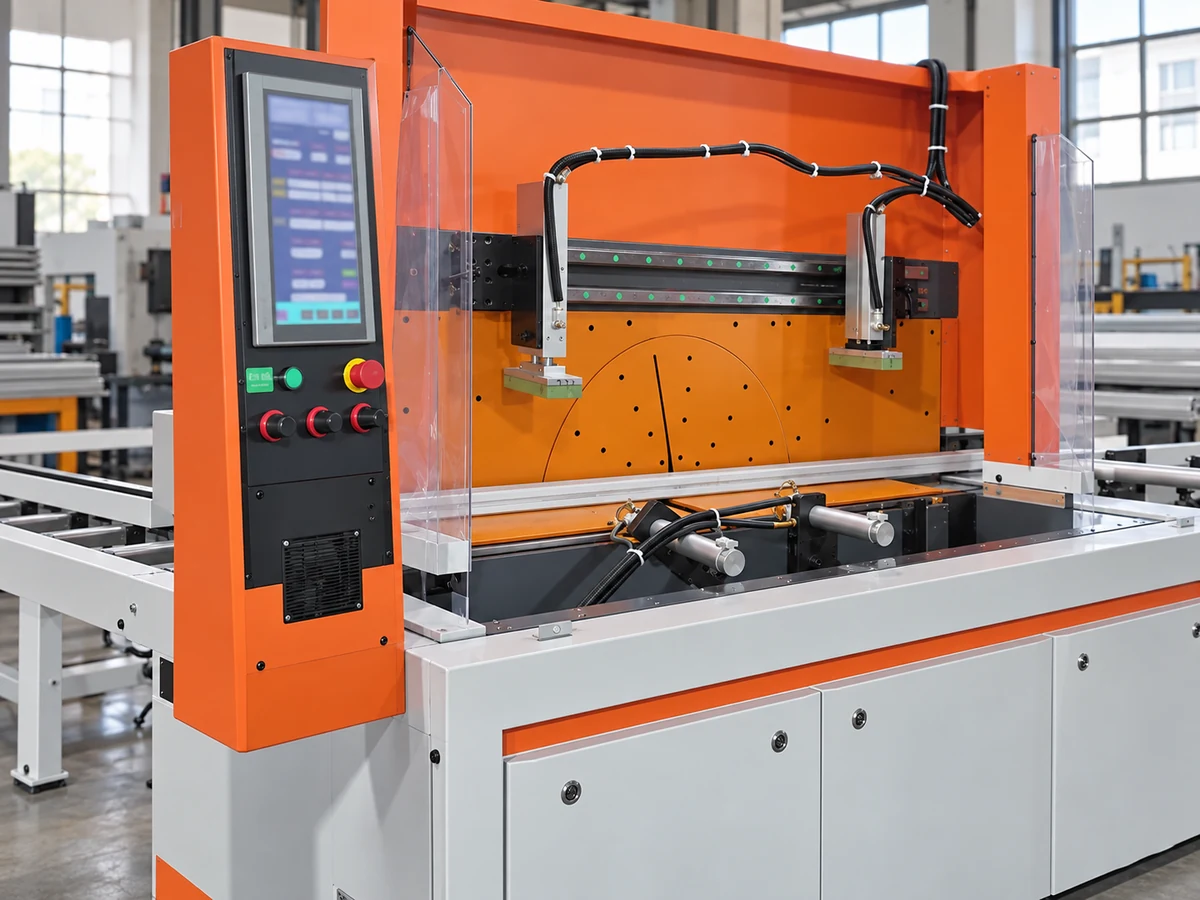
How to locate an aluminum saw HMI response delay
Use the same safe, permitted command in the same machine state for each observation. Mark four moments: the finger touches the target; the target visibly changes or the HMI acknowledges it; the displayed machine status changes; and the physical output or motion begins. A phone video showing the screen and machine area together can help a qualified technician compare the order, provided recording is allowed on site and the operator stays outside the guarded area. Do not infer a latency specification from one recording.
A missed target, a delayed page redraw, and a prompt display followed by a stationary clamp are three different reports. Also record whether the delay occurs on every screen, only one command, only after a recipe change, or only when the saw is warm. Note the time, alarm text, selected program, material state, and whether the machine is waiting for a legitimate permissive. These details narrow the service discussion without assuming that a late motion is an HMI fault.
If the tap is missed or lands on the wrong control
First distinguish a touch-position error from a slow response. On a safe non-motion screen, does the highlighted control correspond to the place touched? Are other targets accurate? Is there visible damage, contamination, a protective film, or an unusual operating condition? The answer matters before anyone replaces a panel. Some HMI models provide a touch calibration function, but its location and use are model specific. The Siemens Basic Panels operating instructions describe calibration when a touch device does not respond correctly to taps; that manual is an example of a diagnostic distinction, not a Jiurun configuration instruction.
If the display continues to register the wrong location, record the panel identity and symptom for the equipment supplier. Do not enter service menus, replace the glass, or recalibrate a production panel from a generic web article. For a purchase or retrofit, ask how the chosen HMI is backed up and restored; the separate HMI replacement guide covers project recovery and release after a panel swap.
If the tap registers but the displayed data arrives late
A button can change color promptly while a position value, ready state, or alarm message updates later. In that case, capture which field lags and whether the delay appears across several screens. A technician can then compare HMI diagnostics, application load, controller communications, and the network path supported by that installation. The Rockwell PlantPAx troubleshooting manual treats slow HMI display access as a path involving application, controller, server, and network checks. A saw may have a much simpler architecture; do not assume a server or network component exists on a given unit.
Keep page navigation, numerical updates, and command acknowledgments separate in the record. A page that opens slowly suggests a different test from a single stale status field. A bright, readable screen can still be slow; the HMI readability article addresses visibility rather than response timing. Avoid changing communication rates or controller programs merely to make a demonstration look faster. Those changes require the machine builder’s approved process and a new functional check.

If the screen responds but machine motion waits
Now read the displayed machine state before treating the wait as a defect. A guarded saw may correctly withhold a cut until its approved conditions are satisfied. Depending on the actual machine, those conditions can include a closed guard, a confirmed clamp, a homed feed axis, a ready drive, or a completed preceding step. The exact logic is configuration dependent. A qualified technician should compare the command, status transition, and physical output against the approved electrical and pneumatic or hydraulic drawings. An operator should not bridge a switch or force an output to “prove” the screen is fast.
When only one sequence waits, note whether the delay follows a clamp command, an axis move, or a blade cycle. A slow mechanical response can be mistaken for an HMI problem if the screen has already accepted the command. The same separation helps when reviewing a feed-carriage reference after power loss or a clamp release signal: the control state and the moving mechanism need their own evidence.
The Jiurun video below shows an aluminum profile saw and feed line as related equipment context. Watch how the station, supported stock, and guarded cutting area occupy different parts of the line. It does not measure HMI touch time, prove a particular interlock arrangement, or establish response performance for any buyer’s machine.
Turn the symptom into a useful acceptance test
For a machine being purchased or returned to service, agree on a test that the supplier can actually observe. Specify the exact screen and command, the required machine state, the material or safe simulated condition, and the point at which the operator expects visible feedback. Then ask the supplier to show the status transition and resulting action together. If a delay is acceptable by design, request the reason and the operator-facing indication. If it is intermittent, retain both a normal and an abnormal sequence under comparable conditions.
Do not publish a single “HMI response time” number unless the supplier defines what is being timed. Touch-to-highlight, touch-to-status, and touch-to-motion are different measures. A signed acceptance record should identify which one was checked, the selected configuration, and any unresolved alarms. The buyer can then decide whether the issue belongs in panel service, application support, controller communications, or machine sequencing rather than buying the wrong spare.
What to send the service team
Send the machine serial or identification plate, the installed HMI and software versions if available from approved menus, the exact screen name, the command and machine state, alarm history, and a short observation showing where the delay first appears. Include when the behavior began and whether a panel replacement, software change, power event, or new material setup preceded it. Keep copies of approved project backups under the site’s control. If the machine cannot be operated safely, stop the test and follow the site’s isolation and service procedure.
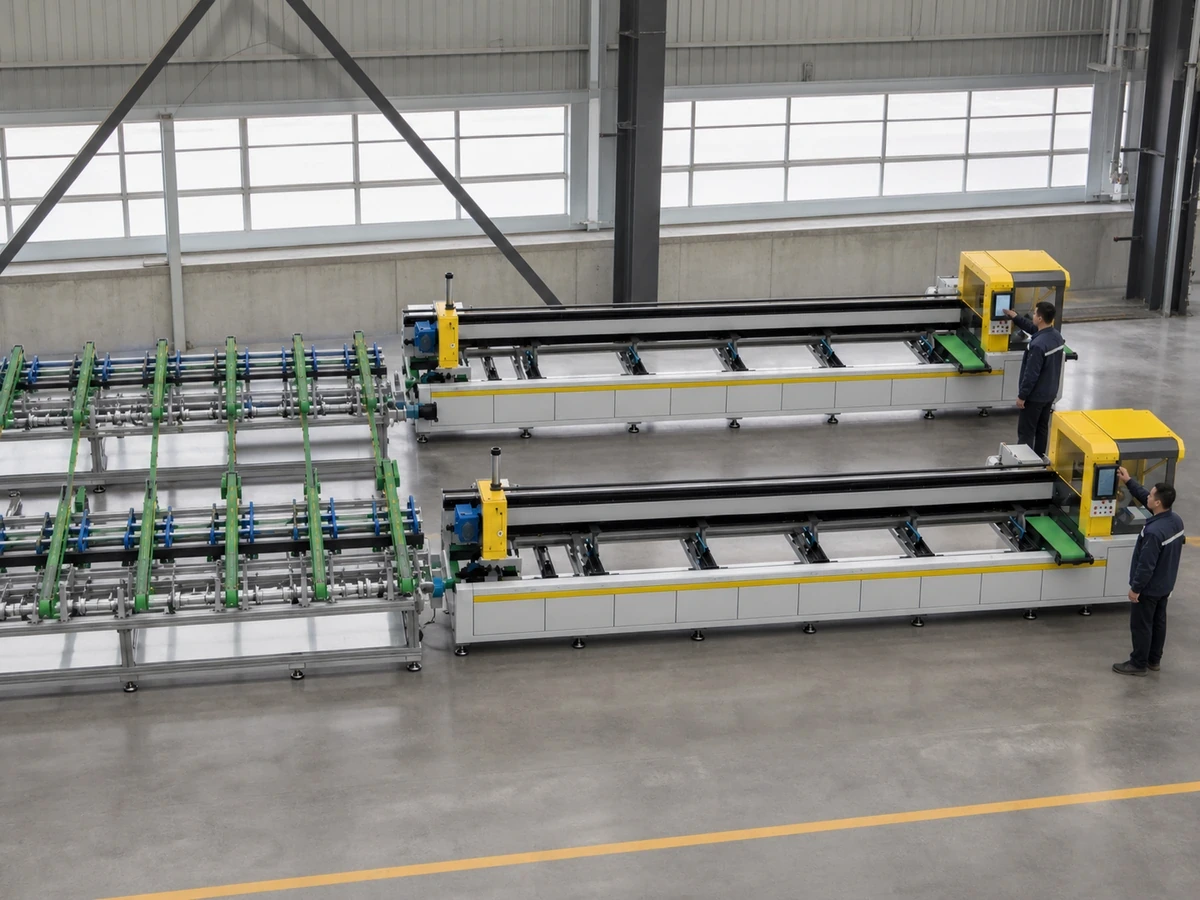
For a new saw inquiry, share the required operator sequence and the conditions under which a response must be demonstrated. Contact Jiurun with your profile drawing, process flow, target station layout, and acceptance questions. Jiurun can review the intended cutting scope and the applicable equipment configuration; the illustrations and video here do not substitute for a documented test on the selected machine.
Source and scope note
The Rockwell integrated touch display guide separately discusses touch errors and a slow display application. The Siemens and Rockwell documents linked above are manufacturer references for diagnostic concepts. Their features, thresholds, and service steps must not be assumed to apply to Jiurun equipment or to another vendor’s HMI.