
An aluminum saw stops at 10:14 on the operator screen, but the drive log says 10:09 and the shift note says 10:16. Which event came first? Before treating those records as a fault sequence, establish what each clock is showing. Aluminum saw alarm timestamps can be useful evidence only when their source and offset are known.
This guide is for maintenance leads, production supervisors and buyers who need an auditable fault record from an automatic cutting line. It offers a way to preserve and compare events, plus questions to put to the machine supplier. It does not assert that any Jiurun model uses a particular PLC, HMI, server, alarm architecture or time-sync option. Confirm those details from the installed machine documentation and configuration.
Aluminum saw alarm timestamps: which device stamped the event?
An alarm displayed on an HMI is not necessarily timestamped by that screen. In one architecture the controller stamps a device-based alarm before it reaches the display; in another, software applies a timestamp after receiving a tag update. Rockwell Automation documents both patterns in its FactoryTalk Alarms and Events guide. Its device-based alarms use controller time, while server tag-based timestamps can be delayed by polling and processing. These examples explain why the source must be identified; they are not a description of the control installed on a Jiurun saw.
Ask the OEM for the alarm path on the exact quoted or installed line: detection point, timestamping device, display or historian, export format and time zone. If a control cabinet, PC, HMI and drive each show a clock, ask which ones are synchronized and to what reference. Do not assume a screen time is the same as the event time or that a later log row means a later physical event.
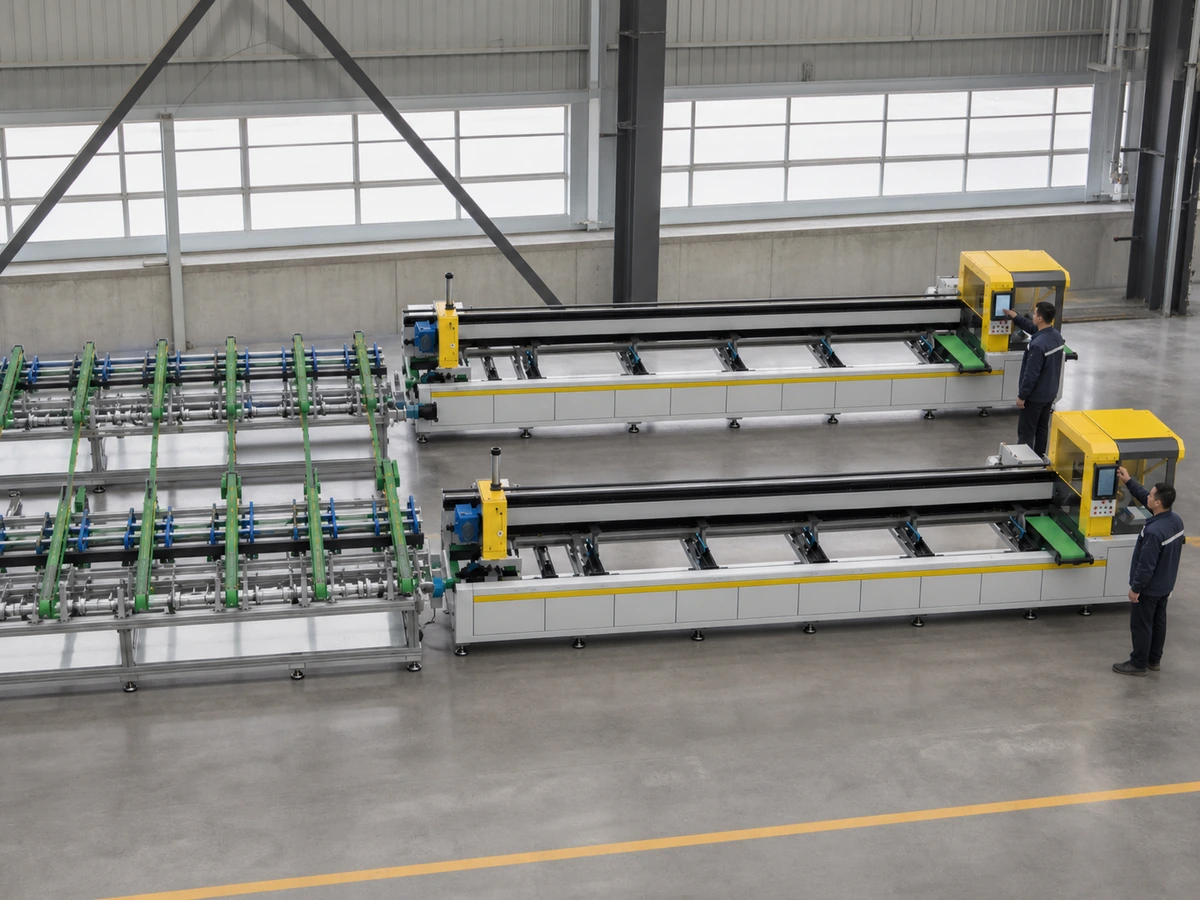
Preserve the raw record before adjusting any clock
When the line is stopped, follow plant safety and access rules. Capture the alarm screen with the complete date and time, alarm code, machine identity and active program. Export the original event log if the approved procedure permits it. Capture companion drive or safety messages, their device names and the time each screen reports. Record a separate reference time from a trusted site clock at the moment of capture, including its time zone. Photograph the same reference with the display if practical.
- Keep the unedited log and label each copy with the device and export time. A screenshot alone may omit milliseconds, earlier events or acknowledgments.
- Write down the time zone, daylight-saving setting and whether the display uses 12- or 24-hour format. A fixed one-hour difference is a clue to investigate, not proof of a setting error.
- Mark the operator’s observed physical sequence separately from the control’s timestamps: material feed, clamp, cut, stop, reset and first accepted part. If an observation is uncertain, say so.
- Note recent power loss, long shutdown, service work or clock changes, without deciding that any one of them caused the mismatch.
Do not reset device time during production simply to make a screenshot look consistent. Siemens’ WinCC Unified documentation warns that abrupt system-time changes in a running system can disrupt runtime behavior and recommends configured synchronization. That guidance applies to the Siemens system described there; the safe procedure for your saw comes from its OEM and site controls.
Rebuild the sequence without hiding the offset
For aluminum saw alarm timestamps, make a comparison table with one row per event: source device, original displayed timestamp, time zone, event text, observed action and any known offset from the site reference. Preserve the original value and add a separate normalized time column only after the time basis is verified. Do not overwrite the evidence. If the log lacks a timezone or you cannot establish a reference, label the order unresolved.
Three patterns call for different questions. A stable offset across multiple events suggests a clock or timezone comparison issue. An offset that grows during a long run suggests drift or a failed synchronization path. A sudden date jump after power or maintenance suggests a reset or manual change. Message delivery can also make a server-stamped event appear later than the controller detected it. These are diagnostic hypotheses, not fault findings. Compare repeated observations and ask the OEM how the configured system behaves.

What to ask the supplier during fault review or acceptance
For a service case, send the untouched log, comparison table, machine serial and control identification, date and time settings, and a concise physical sequence. Ask who should inspect the clock source, whether the HMI and PLC time bases differ, and how the cause will be verified after an authorized correction. If a fault can affect part quality, agree which pieces to hold until the cut-length and other job checks are complete. For an example of a separate motion fault, see the feeder overtravel triage guide; its alarm should not be diagnosed from time order alone.
For a new machine inquiry, request a demonstrated alarm-history export and a written answer to four acceptance questions: (1) which device creates the timestamp; (2) which reference synchronizes that device; (3) how time zone and daylight saving are represented; and (4) how the team checks event order after a planned restart or power interruption. Test a harmless, approved event under the OEM’s supervision and compare the HMI, controller or historian record with the site reference. Record any disagreement and the agreed resolution before signing off the data requirement. Do not trigger safety faults solely to make a test log.
Video: equipment context, not a clock test
The following video is from the Jiurun Machinery channel. It shows a CNC aluminum cutting machine, its guarded cutting area and operator-side controls. It is a related equipment view only; it does not demonstrate alarm timestamps, PLC/HMI synchronization, this article’s configuration or a customer acceptance test.
Close the record and choose the next action
Once an authorized technician has established the time basis, retain the original records alongside any corrected comparison. Then investigate the actual fault using the machine’s service instructions. A plausible timestamp order does not establish a failed sensor, drive or operator action. If a controller battery warning is also present, review it as its own issue; see our PLC battery alarm guide for the evidence to preserve before shutdown.
The control-system principles above are supported by Siemens’ WinCC Unified time-synchronization guidance and Rockwell Automation’s Alarms and Events configuration guide. Their product-specific procedures should not be copied to another machine without its own documentation.
If you are comparing saws or need help framing a fault record, contact JiurunCut with the machine identification, material and cut requirements, and the timestamp questions above. Ask us to confirm the control and log behavior of the exact configuration you are considering.